

There are three ways to add Google reviews to your website: screenshot your best reviews into your CMS, embed Google Maps directly, or use a free social media aggregator like Juicer.io to pull in a live, moderated feed.
All three work – screenshots are fastest, Maps is free but rigid, and an aggregator gives you a free, auto-updating widget with full design control. Below, we break down the setup steps and trade-offs for each.
Method 1: Add a screenshot of your positive reviews
Adding a Google reviews screenshot means uploading an image of your best reviews directly into your website’s CMS – no code or integration required… just copy, paste, and publish.

It’s not the most sophisticated approach, but it works. If you’re just getting started and want to display a handful of glowing reviews quickly, this gets the job done.
Pros & cons of this method for displaying Google business reviews
Pros:
- Quickest way to get customer feedback visible on your site, no tools or technical skills required
- The trust impact is significant: 83% of users are more trusting of a company showcasing a user-generated reviews, so even a small selection of recent screenshots can make an impact
- Full control over which positive reviews you highlight
Cons:
- Screenshots go stale fast – and that matters, since 85% of consumers don’t consider older reviews relevant, meaning you’ll need to keep updating them manually
- Static images don’t adapt well to mobile layouts and can look unprofessional compared to a purpose-built widget
- Not scalable. Managing and refreshing screenshots across your site becomes tedious as your review volume grows
Method 2: Embed Google reviews directly using Google Maps for free
Embedding Google reviews via Google Maps means pasting a free iframe snippet that displays your business’s live star rating, review count, and location directly on your site. Google Maps gives you a free, native way to embed a map of your business (including your star rating and review count) directly onto your site.
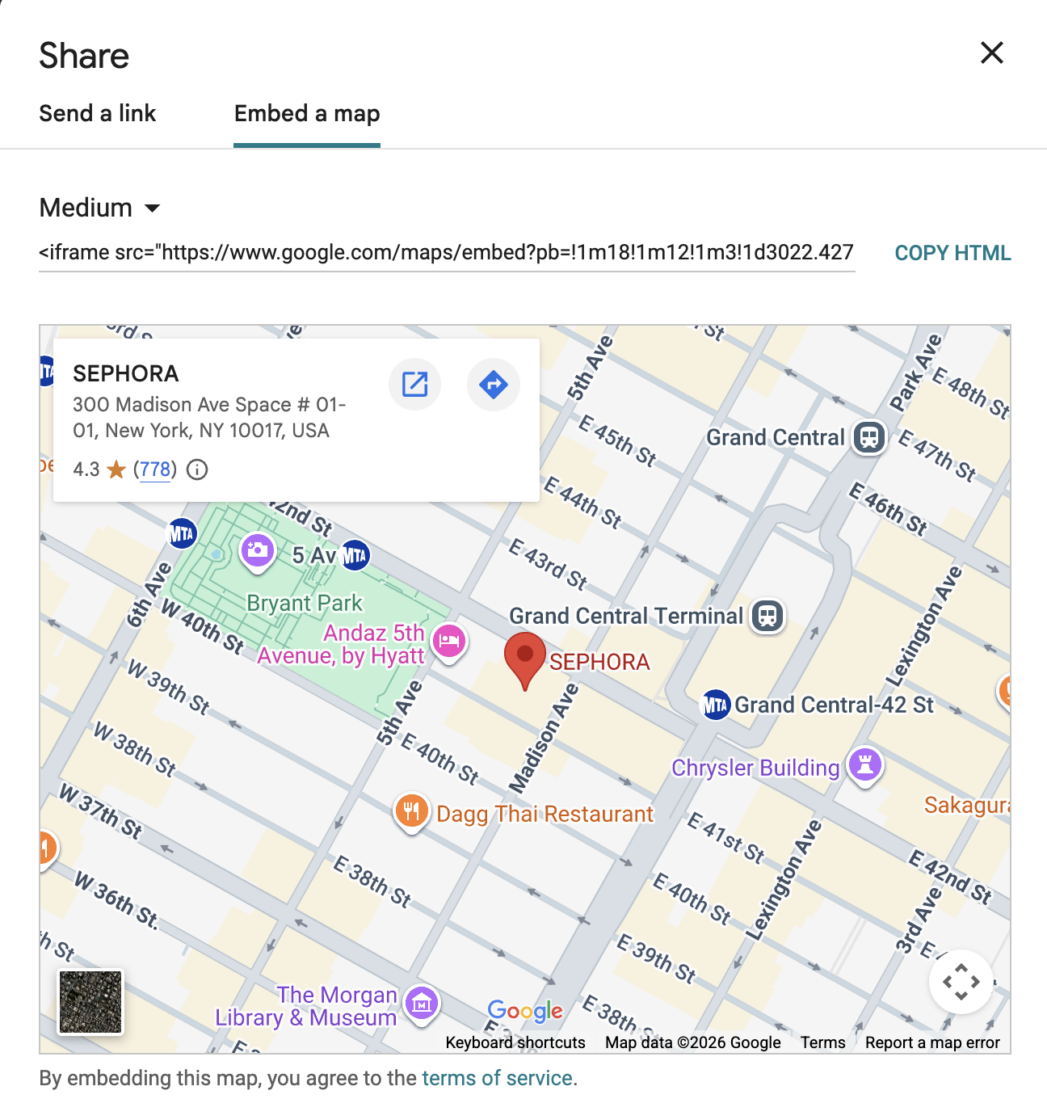
Here’s how to do it:
- Find your business on Google Maps
- Click “Share” then select “Embed a map”
- Copy the iframe embed code that appears
- Paste it into your website’s HTML where you want it to display
That’s it. No third-party tools, no cost.
Pros & cons of this method for displaying Google business reviews
Pros:
- Completely free and relatively quick to set up… just copy and paste an embed code
- Displays your live star rating and review count, which are verified by Google and carry real weight with visitors
- Helps with local SEO
Cons:
- Very limited styling options. The embed tends to look generic and rarely fits seamlessly into a well-designed site
- You have no control over which reviews surface, meaning negative or unhelpful reviews are just as visible as your best ones, and without content moderation, that’s a real risk
- Doesn’t work well at smaller screen sizes, which matters given how much traffic comes from mobile
Method 3: Use a free social media aggregator
Using a social media aggregator means connecting a tool like Juicer to your Google Business Profile so reviews pull into a live, moderated feed you fully control, for free.
Juicer.io’s Google Reviews aggregator pulls content from multiple platforms (including Google Reviews) and displays it on your website through a single, embeddable feed. It’s one of the most trusted tools for this, used by thousands of brands to display social feeds on their websites.
And the best part? Embedding Google reviews is completely free with Juicer.io.
Unlike the previous two methods, this approach gives you real control over design, moderation, and how your customer feedback is presented. If you want your Google reviews widget to actually reflect your brand and stay current automatically, this is how you do it.
How to embed Google reviews with Juicer
1. Sign up for Juicer and click “New Feed” from your dashboard.

2. Select Google Reviews from the list of available sources – Juicer.io supports 15+ platforms, so you can always add more later.

3. Enter your business name or address to locate your Google Business Profile.
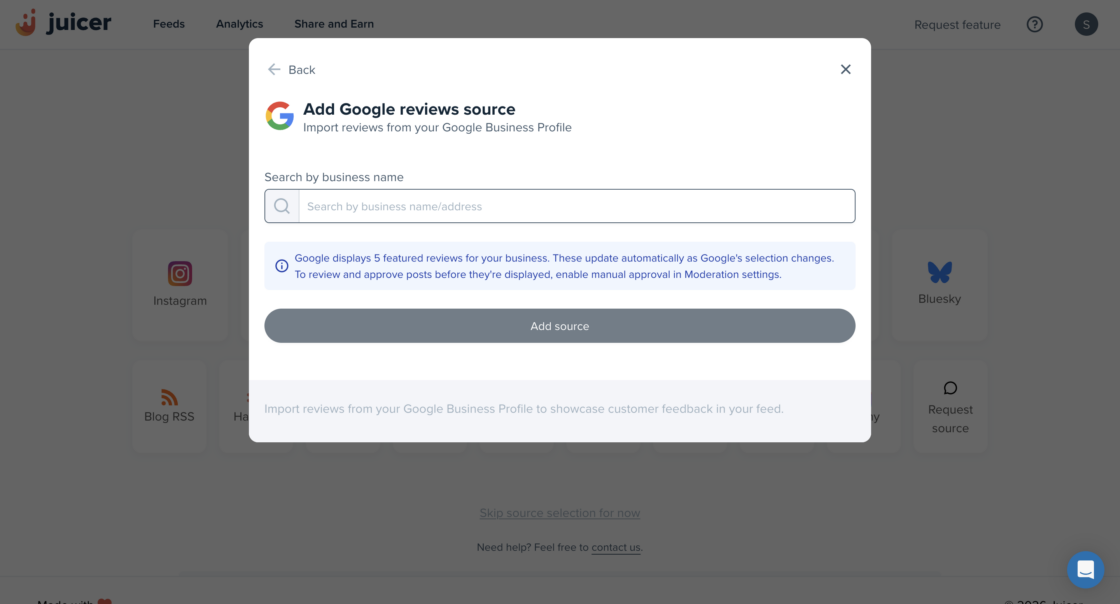
4. Confirm your location using the preview and click “Add Source.” Your Google reviews feed will load automatically.

5. Customize and moderate your feed. This is where Juicer.io stands out; you can filter out negative reviews, adjust the layout, and style the feed to match your site’s branding.

6. Grab your embed code. Juicer.io gives you three ways to add it to your site: a standard JavaScript snippet, an iframe, or a direct CMS integration. Paste whichever fits your setup into your page and you’re live.
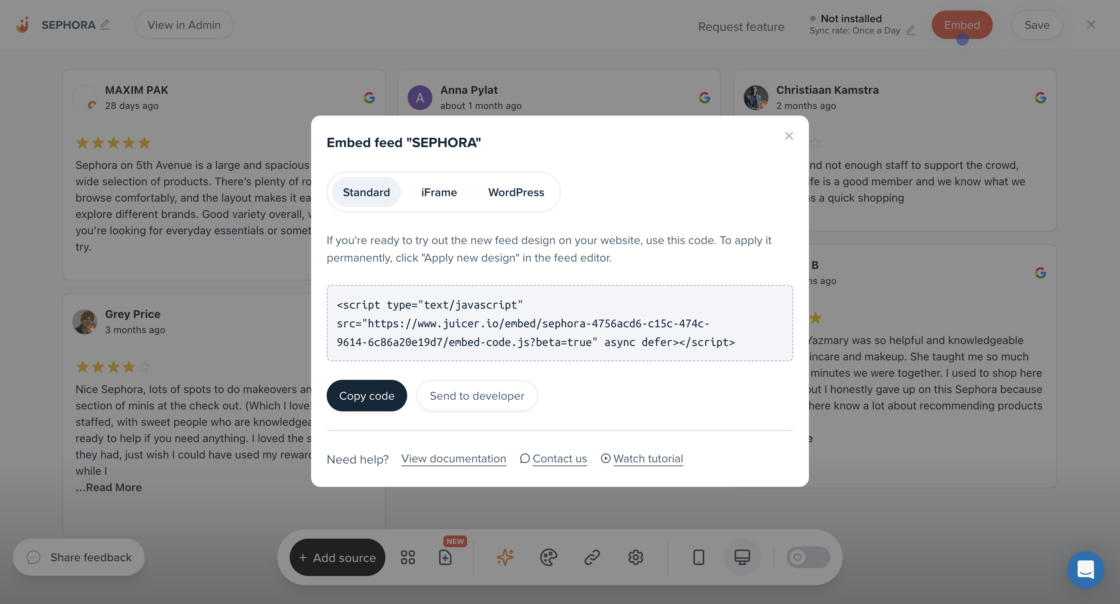
Pros and cons of this method for displaying Google business reviews
Pros:
- Your feed updates automatically! Every new Google review appears on your site without you lifting a finger
- Full design control lets you match the feed to your branding: adjust layout, fonts, and colors
- Built-in moderation means you decide what visitors see – a critical feature when you consider how unfiltered negative content can directly hurt conversions
- Each review includes the author’s name, photo, and a link back to your Google page – adding a layer of authenticity that screenshots simply can’t match
- Free to get started – no barrier to embedding Google reviews on your site right away
Cons:
- Takes slightly more setup than a screenshot or a basic iframe, though it’s still straightforward enough for non-technical users
- Advanced features like custom styling and multi-source feeds are part of paid plans, so if you’re looking to personalize significantly, you’ll want to factor that into your budget
Embed Google reviews seamlessly with Juicer.io
All three methods we’ve covered can get Google reviews onto your website – but they’re not equal. Screenshots go stale fast, and the Google Maps embed buries your customer feedback inside a map. Neither gives you the flexibility or the professional finish that actually builds trust with visitors.
That’s where Juicer.io comes in: you get a fully customizable Google reviews widget that updates automatically, lets you moderate your feed, and looks great on any device… and you can get started for free.
It’s the most complete way to add Google reviews to your website without the manual upkeep. Sign up and try it today.
FAQs about how to add Google reviews to website
There are several good reasons to embed Google reviews directly on your site:
1. Build trust instantly. Authentic feedback from satisfied customers is some of the most powerful social proof you can put in front of potential customers. It establishes trust far more effectively than anything you write about yourself.
2. Boost conversions. Visitors who see real customer feedback on your homepage are more likely to take action, whether that’s making a purchase or getting in touch. Reviews directly impact conversion rates.
3. Strengthen your online reputation. Keeping positive business reviews visible on your site reinforces your credibility every time someone lands on a page.
4. Attract more customers. When new customers see that others have had great experiences with your business, it lowers hesitation and makes them more likely to convert.
5. Support your search results ranking. Actively displaying Google reviews signals to Google that your Google Business Profile is active and credible, which can support your visibility in search.
The easiest way is with Juicer.io. Whether you’re working with a WordPress, Wix, or Squarespace website, the process is the same: sign up, connect your Google account, enter your business name or business location, and Juicer.io generates an embed code you simply copy and paste into your site’s HTML code. No complicated html code, no developer needed.